 While the Attack Paths page helps you investigate and remediate specific findings related to Attack Paths, the Posture page provides a high-level view of your organization’s security posture over time.
It aggregates Attack Path data to provide insights about where the biggest risks originate and how your remediation efforts are reducing risk.
While the Attack Paths page helps you investigate and remediate specific findings related to Attack Paths, the Posture page provides a high-level view of your organization’s security posture over time.
It aggregates Attack Path data to provide insights about where the biggest risks originate and how your remediation efforts are reducing risk.
Filters
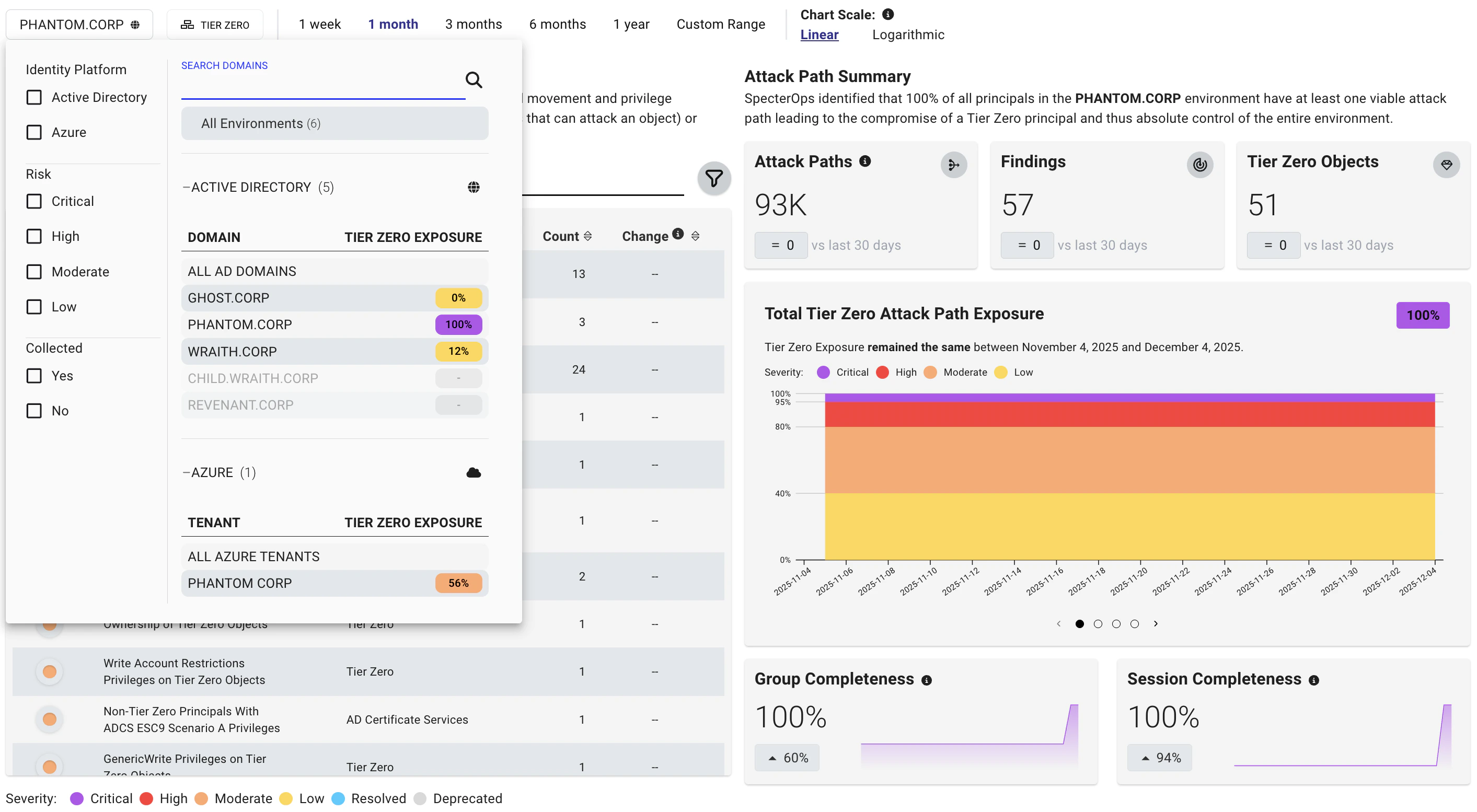
You can filter the posture view by environment, privilege zone, hygiene, and time range to assess your overall risk and compare trends over time. Use these filters to focus on specific areas of interest or to track the impact of remediation efforts. For example, you can filter by a specific environment to see how posture has changed in that environment over time, or filter by hygiene findings to track trends in tier-agnostic risks.Environment
The environment filter allows you to view posture trends for a specific platform, such as an Active Directory domain or Azure tenant. This can help you understand how posture is changing within that environment and identify areas that may require additional attention. You can also filter on severity levels to focus on trends in high-risk Attack Paths. For example, you can filter to show only CRITICAL Attack Paths to see how the most severe risks are changing over time.Date range
The date range filter allows you to compare posture trends between analysis runs. For example, you can compare the current state of your environment to a previous point in time to see how your risk posture has changed. Choose from preset ranges or set a custom range to compare specific analysis runs. Custom date ranges include a time picker, so you can set exact start and end times.Chart scale
The chart scale filter allows you to adjust the scale of the posture graphs to better visualize trends. For example, if you have a large number of findings, you may want to use a logarithmic scale to better see changes over time. The linear scale shows consistent ranges clearly, while the logarithmic scale highlights outliers and wide variations in the data.Interpreting Posture
The Posture page tracks how your risk posture changes between analysis runs. It includes several sections that show trends in attack path severity, findings, and exposure over time. When reviewing posture trends, consider the following:- Attack Paths—Represent chains of abusable privileges and user behaviors that create direct or indirect connections between principals. Each attack path is made up of one or more edges.
- Findings—Represent specific principals and relationships between principals that can be abused to reach a privileged asset. Each finding can be composed of one or more attack paths, so finding counts and Attack Path counts can differ.
Attack Paths
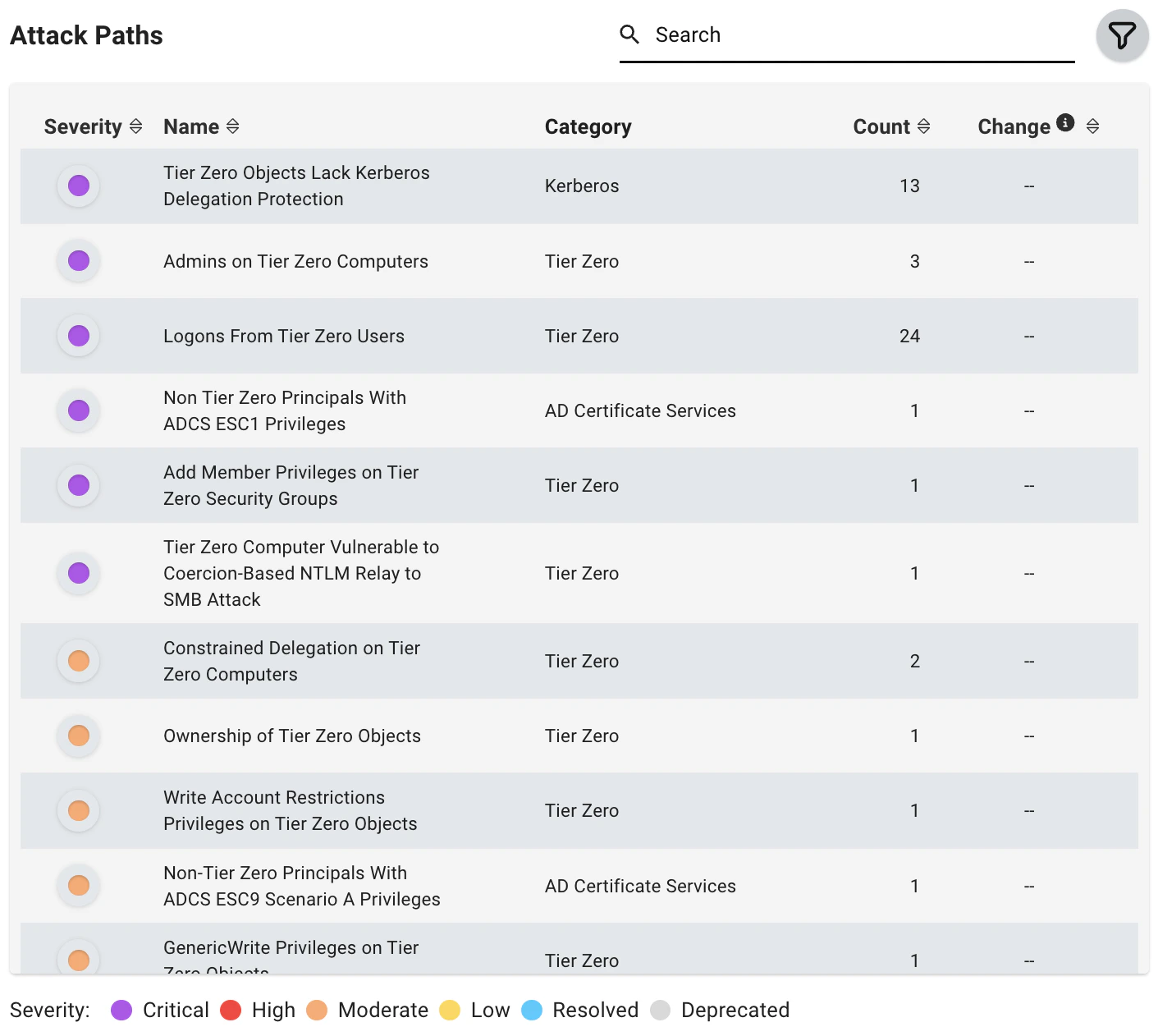
The Attack Paths table shows attack paths with active findings in the selected date range. This list can also include attack paths that were fully resolved (by your remediation efforts) or deprecated (by SpecterOps) during the same range. This table is designed for trend tracking and reporting. For per-finding details such as description, impacted principals, exposure/impact metrics, and remediation guidance, use the Attack Paths page.| Column | Description |
|---|---|
| Severity | The severity level of the Attack Path at the end date of the selected range. |
| Name | The name of the Attack Path. |
| Category | The category of the Attack Path. |
| Count | The number of findings that existed on the end date of the selected range. |
| Change | The calculated difference in the number of findings between the beginning and end date of the selected time range. |
Count is calculated on a per-day basis. Depending on the selected date and time range, displayed counts may differ if analysis runs span day boundaries.
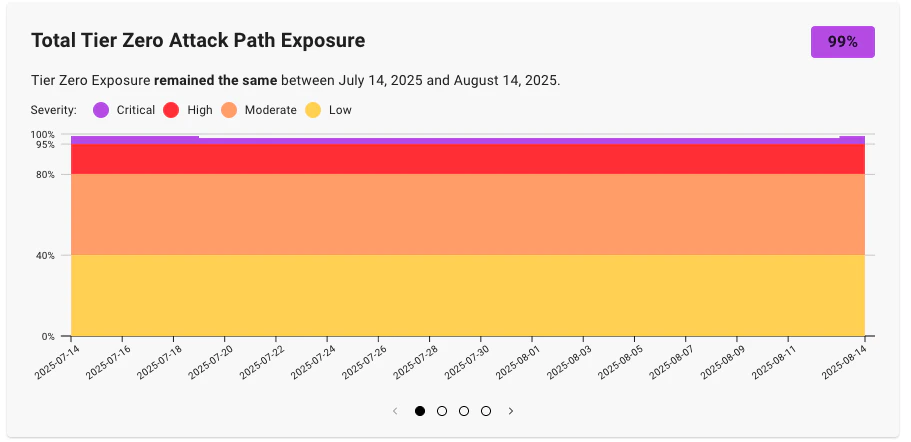
- CRITICAL: 95%-100%
- HIGH: 80%-94%
- MODERATE: 40%-79%
- LOW: 0%-39%

Attack Path Summary
This section provides a summary of risk within the applied filter on the selected end date, including the change in Attack Paths, findings, and Tier Zero objects within the selected time frame.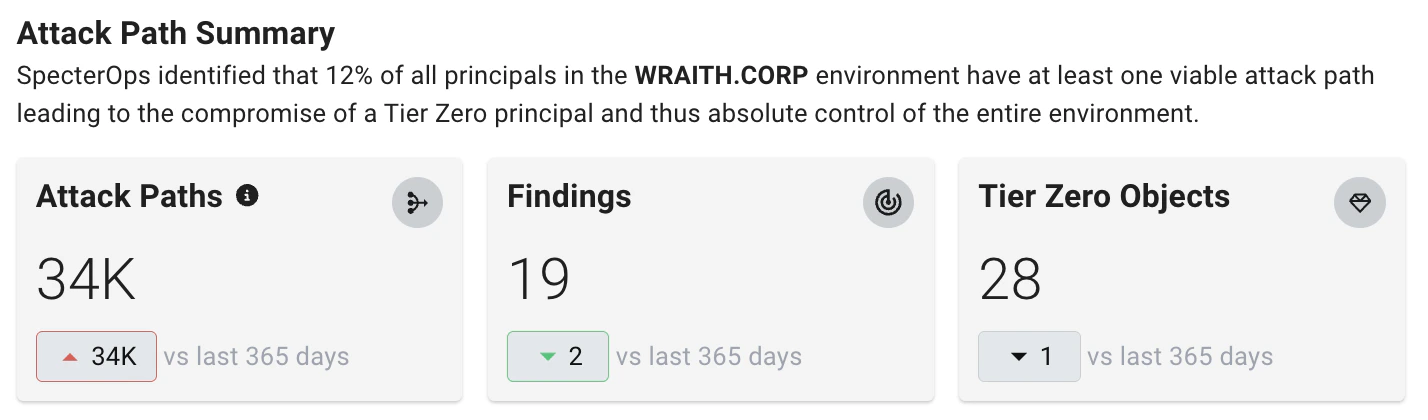
Posture Over Time Graphs
This series of visualizations shows posture over time. They provide insights about trends in exposure levels, findings, attack paths, and Tier Zero objects.-
Total Tier Zero Attack Path Exposure - This graph represents the trend (by percentage) of overall exposure of your Tier Zero Privilege Zone within the selected filter parameters over time.
This trend represents the percentage of principals within the environment (and trusted or connected environments) that can compromise the Tier Zero Privilege Zone.
-
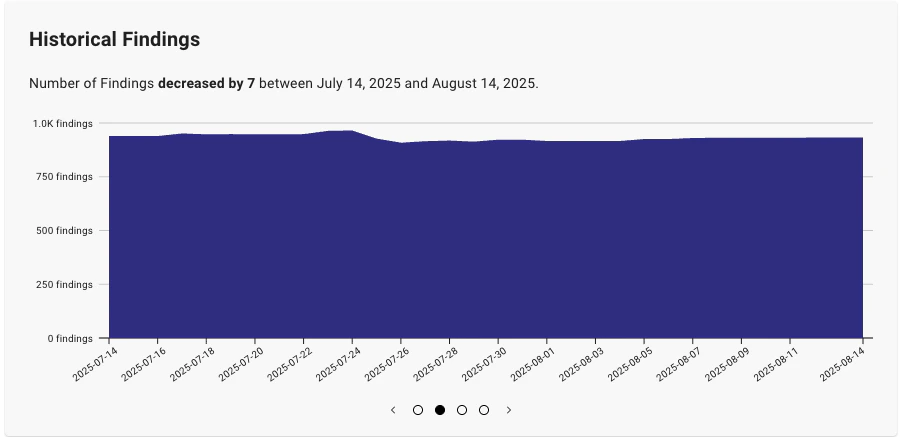
Historical Findings - This graph represents the trend (by count) in the total number of findings within the selected filter parameters over time.
As you remediate findings (or newly created misconfigurations generate new ones), this chart helps you track the changes in the number of identified findings over time.
-
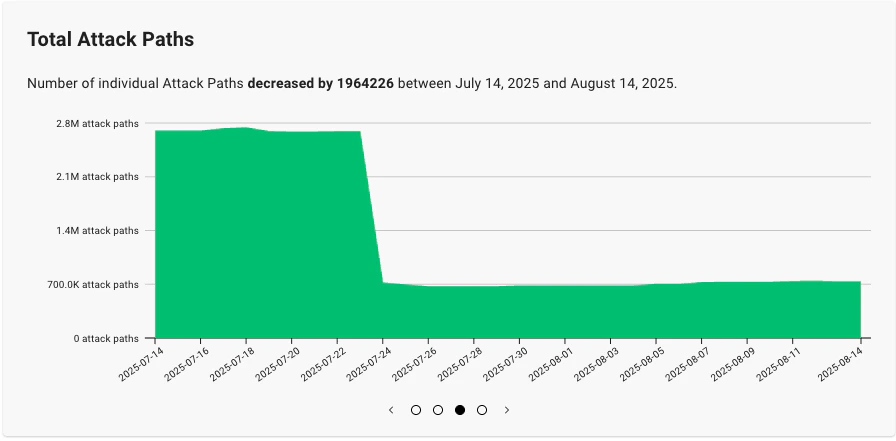
Total Attack Paths - This graph represents the trend (by count) in the total number of active Attack Paths within the selected filter parameters over time.
As you remediate findings that contribute to Attack Paths (or newly created misconfigurations generate new ones), this chart helps you track the changes in the total number of identified Attack Paths over time.
-
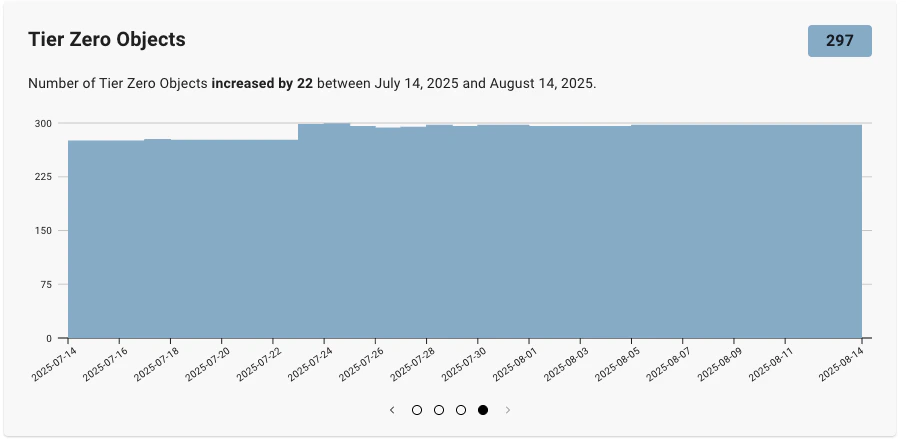
Tier Zero Objects - This graph represents the trend in the total number of objects in the Tier Zero Privilege Zone within the selected filter parameters over time.
As you add or remove objects from the Tier Zero Privilege Zone, this chart helps you track the changes in the number of Tier Zero objects over time.
Completeness Graphs
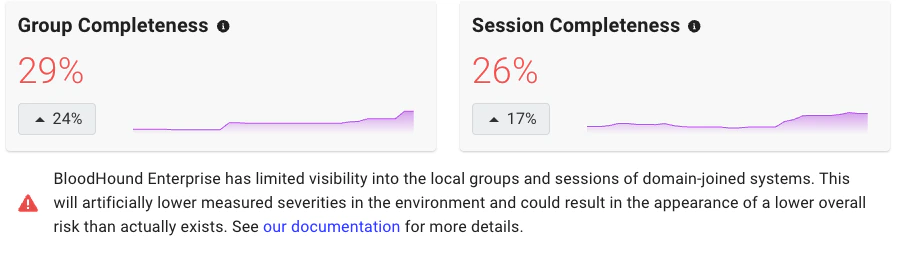
For Active Directory environments, the Group Completeness and Session Completeness graphs represent how much visibility BloodHound Enterprise has into session and local group data across active computers in your environment. BloodHound Enterprise calculates completeness as the percentage of all computers that it successfully scanned for sessions and groups. It includes only enabled computers with at least one login in the past 14 days.