 The Attack Paths page in BloodHound Enterprise surfaces findings — specific instances of vulnerabilities where a lower-privileged entity can gain access to a sensitive resource. Each finding includes prioritization data such as exposure and impact metrics to help you focus remediation efforts where they matter most.
Not every finding requires immediate remediation. Risk acceptance lets you acknowledge a finding as a known risk that your organization has reviewed and chosen to retain for a certain amount of time.
Use acceptance when:
The Attack Paths page in BloodHound Enterprise surfaces findings — specific instances of vulnerabilities where a lower-privileged entity can gain access to a sensitive resource. Each finding includes prioritization data such as exposure and impact metrics to help you focus remediation efforts where they matter most.
Not every finding requires immediate remediation. Risk acceptance lets you acknowledge a finding as a known risk that your organization has reviewed and chosen to retain for a certain amount of time.
Use acceptance when:
- You have reviewed the risk and agreed to tolerate it for a defined period.
- You are waiting for a change to complete, such as a retention window.
Accepting a finding records that the risk is known and temporarily tolerated. Acceptance is not a fix. To reduce risk, you must remediate the underlying condition.
- You are ready to remove the risky condition.
- You want posture trends to reflect actual risk reduction.
Accept a finding
Before accepting a finding, you must sign in to BloodHound Enterprise with a role that can accept attack path impacted principals. When you accept a finding principal:- It is excluded from posture calculations.
- It is hidden from the default principal table view for that finding.
- The principal and related edges still appear in other analysis views, including Explore and Posture.
Locate the finding
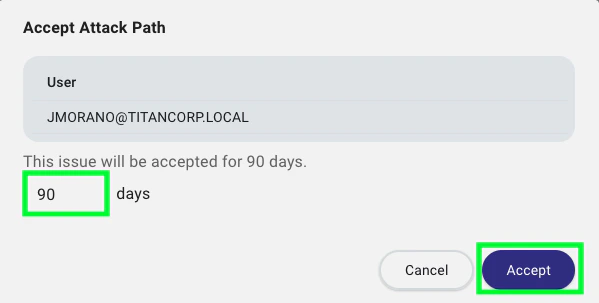
Expand the finding, open the menu to the left of the principal name (three vertical dots) and click Accept.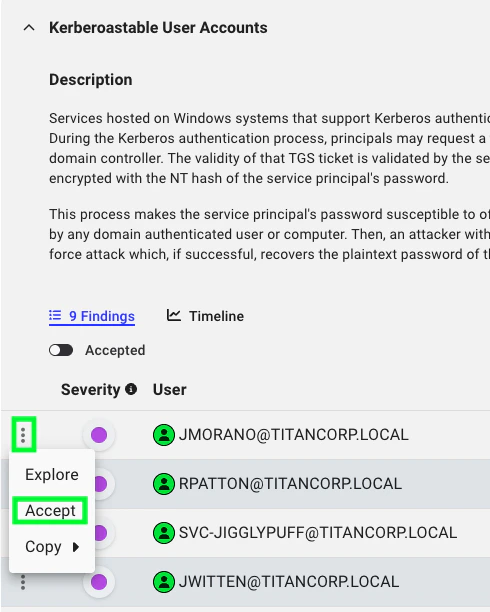
Remove acceptance
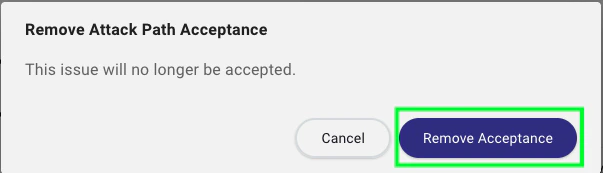
To remove acceptance for a principal:Remove acceptance
Open the menu to the left of the accepted principal (three vertical dots), and click Remove Acceptance.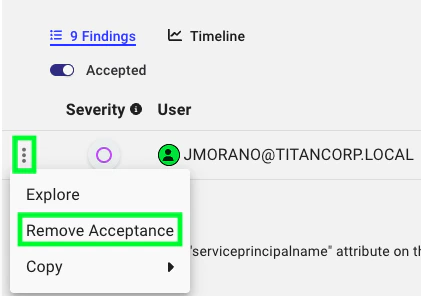
Outcome
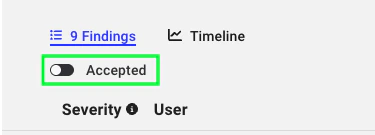
After acceptance, the principal is hidden from the default principal table for that finding until you enable the Accepted toggle. The principal and related edges remain visible in the Explore and Posture pages.